> ## Documentation Index
> Fetch the complete documentation index at: https://docs.mixpeek.com/docs/llms.txt
> Use this file to discover all available pages before exploring further.
# BrightData
> Collect web datasets and scraper results from BrightData and ingest them into Mixpeek.
BrightData is a web data platform with pre-built datasets (LinkedIn, Amazon, Google Maps, etc.) and custom web scrapers. Each sync triggers a new dataset snapshot, waits for it to be ready, and ingests every row as a bucket object.
## Overview
The BrightData integration connects Mixpeek to BrightData's Datasets API. When a sync runs, Mixpeek:
1. Triggers a new dataset snapshot for the configured dataset ID.
2. Polls the snapshot until status is `ready`.
3. Downloads the JSONL results.
4. Creates one bucket object per row, with the full JSON record as the object blob.
Each row's fields are stored as bucket object metadata, making them filterable and searchable alongside the extracted features from your collection pipeline.
## Prerequisites
* An active [BrightData](https://brightdata.com) account.
* A BrightData API token (found in Dashboard → Account → API Token).
* Access to the dataset(s) you want to sync (subscription required for most datasets).
## Configuration
### Connection-Level Fields
| Field | Required | Description |
| ----------------------- | -------- | ------------------------------------------------------ |
| `api_token` | Yes | BrightData API token — encrypted at rest |
| `customer_id` | No | BrightData customer ID for zone-level auth |
| `default_output_format` | No | `jsonl` (default) or `json` |
| `country` | No | ISO 3166-1 alpha-2 code for geo-targeting (e.g., `us`) |
### Sync-Level Fields
| Field | Required | Description |
| -------------------------- | -------- | ----------------------------------------------------- |
| `source_path` | Yes | BrightData dataset ID (e.g., `gd_l1vikfnt1wgvvqz95w`) |
| `sync_mode` | No | `continuous`, `one_time`, or `scheduled` |
| `polling_interval_seconds` | No | Seconds between scheduled runs |
You can find a dataset's ID in the BrightData Marketplace under the dataset detail page. It starts with `gd_`.
## Setup
1. Log in to your [BrightData Dashboard](https://brightdata.com/cp/setting).
2. Go to **Account Settings → API Tokens**.
3. Create a new token or copy an existing one.
Keep your API token secret — it has full access to your BrightData account.
1. Open the [BrightData Marketplace](https://brightdata.com/products/datasets).
2. Select the dataset you want to sync (e.g., LinkedIn Company Profiles, Amazon Products).
3. Copy the dataset ID from the URL or dataset detail page.
Common dataset IDs:
* LinkedIn Company Profiles: `gd_l1vikfnt1wgvvqz95w`
* Amazon Product Data: `gd_l7q7dkf244hwjntr0`
* Google Maps Business Data: `gd_l7q7dkf244hwjntr1`
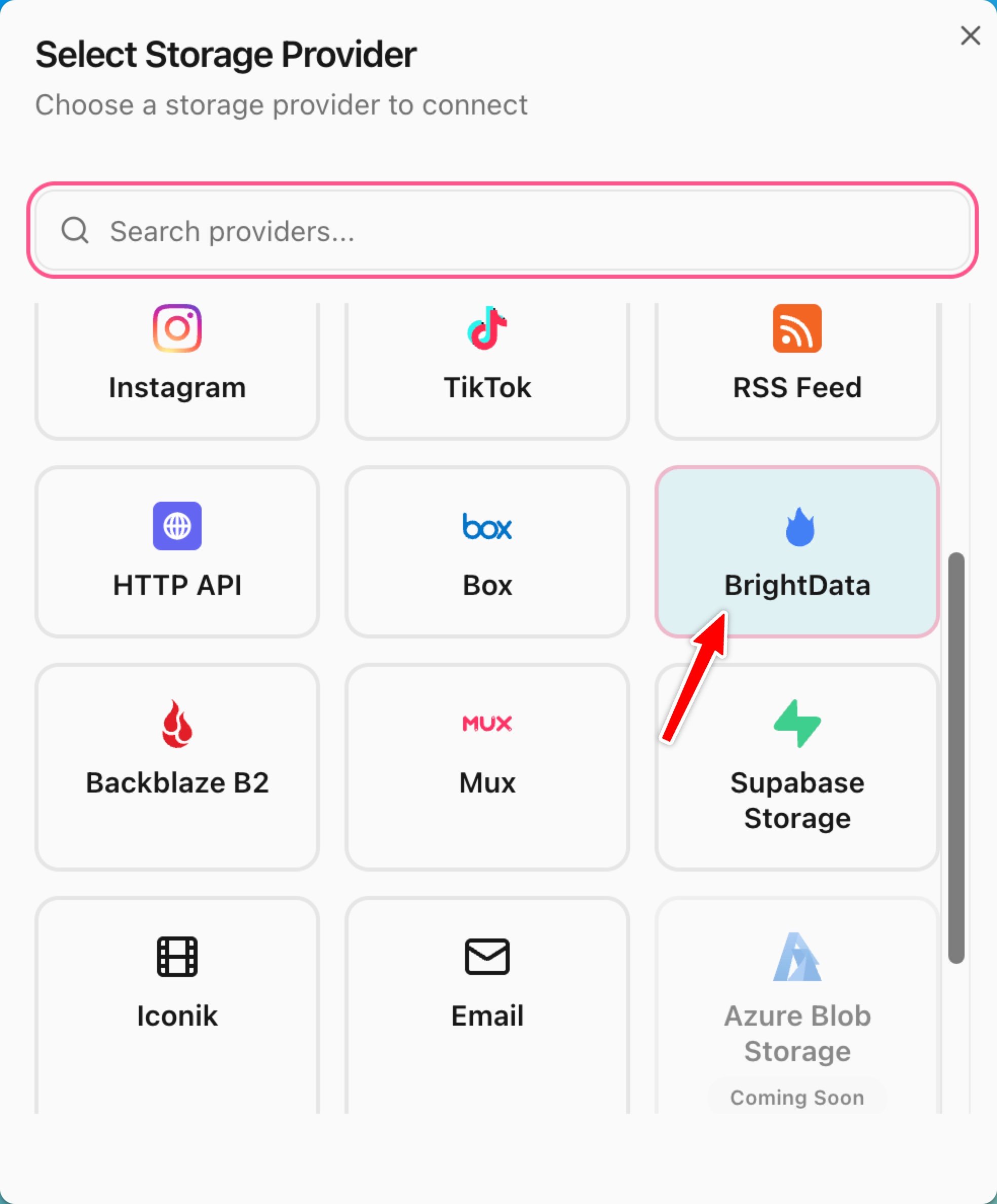
In [Studio](https://studio.mixpeek.com), open **Connections → Add connection** and pick **BrightData** from the storage provider list.
 Or create it programmatically:
```python Python theme={null}
from mixpeek import Mixpeek
client = Mixpeek(api_key="your-mixpeek-api-key")
connection = client.organizations.connections.create(
name="BrightData Production",
provider_type="brightdata",
provider_config={
"credentials": {
"type": "api_token",
"api_token": "your-brightdata-api-token",
},
"default_output_format": "jsonl",
},
)
print(f"Created connection: {connection['connection_id']}")
```
```javascript JavaScript theme={null}
import { Mixpeek } from 'mixpeek-sdk'
const client = new Mixpeek({ apiKey: 'your-mixpeek-api-key' })
const connection = await client.organizations.connections.create({
name: 'BrightData Production',
provider_type: 'brightdata',
provider_config: {
credentials: {
type: 'api_token',
api_token: 'your-brightdata-api-token',
},
default_output_format: 'jsonl',
},
})
console.log('Created connection:', connection.connection_id)
```
```bash cURL theme={null}
curl -X POST https://api.mixpeek.com/v1/organizations/connections \
-H "Authorization: Bearer YOUR_MIXPEEK_API_KEY" \
-H "Content-Type: application/json" \
-d '{
"name": "BrightData Production",
"provider_type": "brightdata",
"provider_config": {
"credentials": {
"type": "api_token",
"api_token": "your-brightdata-api-token"
},
"default_output_format": "jsonl"
}
}'
```
```python Python theme={null}
sync = client.buckets.syncs.create(
bucket_id="bkt_your_bucket_id",
connection_id=connection["connection_id"],
# source_path is the BrightData dataset ID
source_path="gd_l1vikfnt1wgvvqz95w",
sync_mode="scheduled",
polling_interval_seconds=86400, # Daily
batch_size=500,
)
print(f"Sync created: {sync['sync_config_id']}")
```
```bash cURL theme={null}
curl -X POST https://api.mixpeek.com/v1/buckets/bkt_your_bucket_id/syncs \
-H "Authorization: Bearer YOUR_MIXPEEK_API_KEY" \
-H "X-Namespace: ns_your_namespace_id" \
-H "Content-Type: application/json" \
-d '{
"connection_id": "conn_your_connection_id",
"source_path": "gd_l1vikfnt1wgvvqz95w",
"sync_mode": "scheduled",
"polling_interval_seconds": 86400,
"batch_size": 500
}'
```
```bash theme={null}
curl -X POST https://api.mixpeek.com/v1/buckets/bkt_your_bucket_id/syncs/SYNC_CONFIG_ID/trigger \
-H "Authorization: Bearer YOUR_MIXPEEK_API_KEY" \
-H "X-Namespace: ns_your_namespace_id"
```
BrightData dataset snapshots can take from a few minutes to an hour depending on dataset size and your subscription tier. Mixpeek polls the snapshot status automatically and processes records as soon as they're ready.
## Advanced Configuration
### Geo-Targeting
Restrict data collection to a specific country:
```python theme={null}
connection = client.organizations.connections.create(
name="BrightData US Only",
provider_type="brightdata",
provider_config={
"credentials": {"type": "api_token", "api_token": "your-token"},
"default_output_format": "jsonl",
"country": "us", # ISO 3166-1 alpha-2
},
)
```
### Schema Mapping
Map BrightData record fields to Mixpeek document fields using the sync's `schema_mapping`:
```json theme={null}
{
"mappings": {
"content": {
"target_type": "blob",
"source": {"type": "file"},
"blob_type": "auto"
},
"company_name": {
"target_type": "field",
"source": {"type": "tag", "key": "name"}
},
"industry": {
"target_type": "field",
"source": {"type": "tag", "key": "industry"}
}
}
}
```
### File Filters
Filter which records are ingested using standard Mixpeek file filter fields:
```json theme={null}
{
"include_patterns": ["*.json"],
"modified_after": "2024-01-01T00:00:00Z"
}
```
## Data Model
Each BrightData record becomes a Mixpeek bucket object with:
* **Blob:** Full JSON record body (stored as `application/json`)
* **Metadata:** Top-level string, integer, float, and boolean fields from the record
* **`source_provider`:** `brightdata`
* **`source_object_id`:** `:` (deduplicated across syncs)
## Sync Modes
| Mode | Description | When to Use |
| ------------ | -------------------------------------- | ------------------------------------------------- |
| `continuous` | Polls every `polling_interval_seconds` | Real-time monitoring, frequently updated datasets |
| `one_time` | Single import, then completes | One-off data migrations, historical backfills |
| `scheduled` | Runs on a fixed interval | Daily/weekly dataset refreshes |
For most BrightData datasets (LinkedIn, Amazon, etc.), `scheduled` with a daily or weekly interval is the best choice since the underlying data changes at that cadence.
## Troubleshooting
BrightData snapshots expire after 1 hour by default. If your dataset is large:
* Reduce the number of records by adding geo-targeting (`country` field)
* Use a higher-tier BrightData subscription with faster processing
* Contact BrightData support to increase your snapshot limits
Your API token may be invalid or revoked:
1. Go to BrightData Dashboard → Account → API Tokens
2. Verify the token is active
3. Create a new token if needed and update the connection
* Verify the dataset ID in `source_path` is correct
* Check that your BrightData subscription includes this dataset
* Inspect the sync job logs in Mixpeek Studio for detailed error messages
BrightData API has rate limits per subscription tier. Increase `polling_interval_seconds`
or upgrade your BrightData plan for higher throughput.
## Related
* [Bucket Syncs](/api-reference/bucket-syncs/create-sync-configuration)
* [Storage Connections](/api-reference/organization-connections/create-storage-connection)
* [Bucket Uploads](/ingestion/uploads)
* [Schema Mapping](/ingestion/buckets)
Or create it programmatically:
```python Python theme={null}
from mixpeek import Mixpeek
client = Mixpeek(api_key="your-mixpeek-api-key")
connection = client.organizations.connections.create(
name="BrightData Production",
provider_type="brightdata",
provider_config={
"credentials": {
"type": "api_token",
"api_token": "your-brightdata-api-token",
},
"default_output_format": "jsonl",
},
)
print(f"Created connection: {connection['connection_id']}")
```
```javascript JavaScript theme={null}
import { Mixpeek } from 'mixpeek-sdk'
const client = new Mixpeek({ apiKey: 'your-mixpeek-api-key' })
const connection = await client.organizations.connections.create({
name: 'BrightData Production',
provider_type: 'brightdata',
provider_config: {
credentials: {
type: 'api_token',
api_token: 'your-brightdata-api-token',
},
default_output_format: 'jsonl',
},
})
console.log('Created connection:', connection.connection_id)
```
```bash cURL theme={null}
curl -X POST https://api.mixpeek.com/v1/organizations/connections \
-H "Authorization: Bearer YOUR_MIXPEEK_API_KEY" \
-H "Content-Type: application/json" \
-d '{
"name": "BrightData Production",
"provider_type": "brightdata",
"provider_config": {
"credentials": {
"type": "api_token",
"api_token": "your-brightdata-api-token"
},
"default_output_format": "jsonl"
}
}'
```
```python Python theme={null}
sync = client.buckets.syncs.create(
bucket_id="bkt_your_bucket_id",
connection_id=connection["connection_id"],
# source_path is the BrightData dataset ID
source_path="gd_l1vikfnt1wgvvqz95w",
sync_mode="scheduled",
polling_interval_seconds=86400, # Daily
batch_size=500,
)
print(f"Sync created: {sync['sync_config_id']}")
```
```bash cURL theme={null}
curl -X POST https://api.mixpeek.com/v1/buckets/bkt_your_bucket_id/syncs \
-H "Authorization: Bearer YOUR_MIXPEEK_API_KEY" \
-H "X-Namespace: ns_your_namespace_id" \
-H "Content-Type: application/json" \
-d '{
"connection_id": "conn_your_connection_id",
"source_path": "gd_l1vikfnt1wgvvqz95w",
"sync_mode": "scheduled",
"polling_interval_seconds": 86400,
"batch_size": 500
}'
```
```bash theme={null}
curl -X POST https://api.mixpeek.com/v1/buckets/bkt_your_bucket_id/syncs/SYNC_CONFIG_ID/trigger \
-H "Authorization: Bearer YOUR_MIXPEEK_API_KEY" \
-H "X-Namespace: ns_your_namespace_id"
```
BrightData dataset snapshots can take from a few minutes to an hour depending on dataset size and your subscription tier. Mixpeek polls the snapshot status automatically and processes records as soon as they're ready.
## Advanced Configuration
### Geo-Targeting
Restrict data collection to a specific country:
```python theme={null}
connection = client.organizations.connections.create(
name="BrightData US Only",
provider_type="brightdata",
provider_config={
"credentials": {"type": "api_token", "api_token": "your-token"},
"default_output_format": "jsonl",
"country": "us", # ISO 3166-1 alpha-2
},
)
```
### Schema Mapping
Map BrightData record fields to Mixpeek document fields using the sync's `schema_mapping`:
```json theme={null}
{
"mappings": {
"content": {
"target_type": "blob",
"source": {"type": "file"},
"blob_type": "auto"
},
"company_name": {
"target_type": "field",
"source": {"type": "tag", "key": "name"}
},
"industry": {
"target_type": "field",
"source": {"type": "tag", "key": "industry"}
}
}
}
```
### File Filters
Filter which records are ingested using standard Mixpeek file filter fields:
```json theme={null}
{
"include_patterns": ["*.json"],
"modified_after": "2024-01-01T00:00:00Z"
}
```
## Data Model
Each BrightData record becomes a Mixpeek bucket object with:
* **Blob:** Full JSON record body (stored as `application/json`)
* **Metadata:** Top-level string, integer, float, and boolean fields from the record
* **`source_provider`:** `brightdata`
* **`source_object_id`:** `:` (deduplicated across syncs)
## Sync Modes
| Mode | Description | When to Use |
| ------------ | -------------------------------------- | ------------------------------------------------- |
| `continuous` | Polls every `polling_interval_seconds` | Real-time monitoring, frequently updated datasets |
| `one_time` | Single import, then completes | One-off data migrations, historical backfills |
| `scheduled` | Runs on a fixed interval | Daily/weekly dataset refreshes |
For most BrightData datasets (LinkedIn, Amazon, etc.), `scheduled` with a daily or weekly interval is the best choice since the underlying data changes at that cadence.
## Troubleshooting
BrightData snapshots expire after 1 hour by default. If your dataset is large:
* Reduce the number of records by adding geo-targeting (`country` field)
* Use a higher-tier BrightData subscription with faster processing
* Contact BrightData support to increase your snapshot limits
Your API token may be invalid or revoked:
1. Go to BrightData Dashboard → Account → API Tokens
2. Verify the token is active
3. Create a new token if needed and update the connection
* Verify the dataset ID in `source_path` is correct
* Check that your BrightData subscription includes this dataset
* Inspect the sync job logs in Mixpeek Studio for detailed error messages
BrightData API has rate limits per subscription tier. Increase `polling_interval_seconds`
or upgrade your BrightData plan for higher throughput.
## Related
* [Bucket Syncs](/api-reference/bucket-syncs/create-sync-configuration)
* [Storage Connections](/api-reference/organization-connections/create-storage-connection)
* [Bucket Uploads](/ingestion/uploads)
* [Schema Mapping](/ingestion/buckets)